When it comes to printing multiple pages, choosing the right printer settings can save time and prevent mistakes. One setting that often confuses beginners is the collate option. You may see it when printing documents, reports, booklets, or multiple copies of the same file. But what does it actually do? Understanding the collate meaning in printing helps you arrange printed pages in the correct order without sorting them by hand.
1. What Does Collate Mean in Printing?
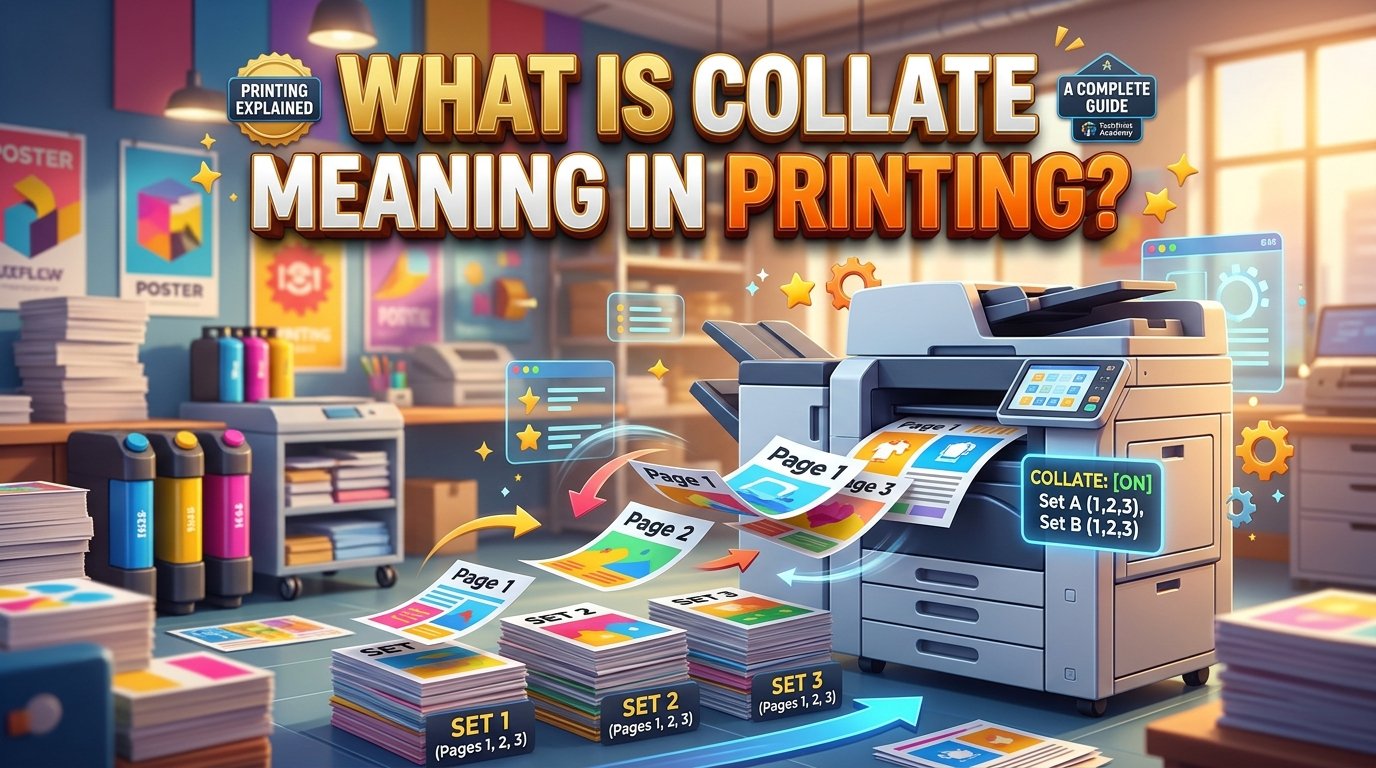
This is the basic collate meaning in printing. The printer groups pages into complete document sets rather than printing all copies of one page together.
The feature becomes especially useful when printing lengthy documents or several copies of the same report. It reduces manual work and makes every copy easier to distribute.
Why Is Collating Important?
Collating improves document organization. It also helps prevent missing pages and incorrect page sequences when handling large print jobs.
Consider a teacher who needs 25 copies of a five-page worksheet. Without collating, the printer may produce 25 copies of page one, followed by 25 copies of page two.
The teacher must then separate and arrange every worksheet manually.
With collating enabled, the printer produces 25 complete worksheets. Each one contains all five pages in the correct order.
This saves time and reduces confusion.
2. How Does Collate Work on a Printer?
Understanding the meaning of common terms can make technology easier to use. Printer terminology is no different. The collate setting controls how your printer groups multiple copies of a document.
Most modern printers follow the page sequence in your digital file. When you request several copies, the printer uses the selected setting to decide how to organize the output.
Here is how the process works.
Step 1: Open Your Document
Start by opening the file you want to print. It could be a Microsoft Word document, PDF, spreadsheet, presentation, or another printable file.
Check that the pages appear in the correct order before printing.
Step 2: Open the Print Menu
Press Ctrl + P on Windows or Command + P on Mac. You can also select the Print option from the File menu.
Your screen will display the available printing settings.
Step 3: Choose the Number of Copies
Find the Copies box and enter the number of complete documents you need.
For example, enter 5 if you want five copies of your report.
Step 4: Select the Collate Option
Look for the Collate checkbox or setting. Its exact position depends on your operating system, printer driver, and application.
Select it to arrange each complete document separately.
Step 5: Check the Preview and Print
Review the print preview before sending the job to your printer.
Make sure the page range, number of copies, paper size, and other settings are correct.
Then click Print.
Important: Some printers and applications enable collating automatically. Others may leave it disabled until you select it yourself.
3. Collated vs. Uncollated Printing: What Is the Difference?
The main difference between collated and uncollated printing is how the printer organizes multiple copies. Both settings can print the same pages, but they produce different page arrangements.
Knowing the meaning of different abbreviations and technical terms can help you understand digital tools. Similarly, learning these two printing options makes document preparation much simpler.
What Is Collated Printing?
Collated printing produces complete document sets in page order.
Suppose you print four copies of a three-page document.
The printer arranges the pages like this:
- First set: 1, 2, 3
- Second set: 1, 2, 3
- Third set: 1, 2, 3
- Fourth set: 1, 2, 3
You receive four separate document sets.
This arrangement works well for reports, assignments, presentations, handouts, and business documents.
What Is Uncollated Printing?
Uncollated printing groups identical pages together instead of producing complete document sets.
Using the same example, the printer arranges the output like this:
- Page 1: Four copies
- Page 2: Four copies
- Page 3: Four copies
You receive all copies of page one first, followed by all copies of page two and then page three.
You must arrange the pages into complete sets yourself if you need separate documents.
Collated vs. Uncollated: Quick Comparison
| Feature | Collated Printing | Uncollated Printing |
| Page arrangement | Complete sets | Identical pages grouped together |
| Page sequence | 1, 2, 3, 1, 2, 3 | 1, 1, 2, 2, 3, 3 |
| Manual sorting | Usually unnecessary | Often required |
| Best for | Reports and booklets | Forms and separate page batches |
| Organization | Produces ready-to-use sets | Requires additional arrangement |
| Time after printing | Saves sorting time | May require extra work |
Which Option Should You Choose?
Choose collated printing when each person needs a complete copy of the same document.
Choose uncollated printing when you need several copies of individual pages for separate tasks.
Neither option is always better. Your choice depends on how you plan to use the printed pages.
4. Practical Examples of Collating in Printing
Real-world examples make printer settings easier to understand. The following situations show how collating helps individuals, schools, offices, and businesses organize printed documents.
Example 1: Printing School Worksheets
A teacher needs 30 copies of a four-page worksheet.
With collating enabled, the printer produces 30 complete worksheets. Every worksheet contains pages one through four.
The teacher can distribute them immediately.
Without collating, the teacher receives 30 copies of page one, followed by 30 copies of each remaining page. Sorting these pages takes additional time.
Example 2: Printing Business Reports
Imagine an office manager preparing 15 copies of a ten-page business report.
Each employee needs a complete report with the same information.
The collate option organizes every report into the correct page sequence. Employees receive complete documents without waiting for someone to sort the pages.
This is particularly useful during meetings and presentations.
Example 3: Printing Meeting Handouts
A company plans a meeting with 20 participants. Each person needs a six-page handout.
Collated printing creates 20 complete sets.
The organizer can place one set on each chair or distribute the documents at the entrance.
This reduces preparation time and helps meetings start smoothly.
Example 4: Printing Training Materials
A training department prepares several copies of a twelve-page learning guide.
Each participant needs the same content in the correct order.
The collate feature ensures that every participant receives a complete guide rather than a random collection of pages.
Example 5: Printing Multiple Copies of a Contract
A business may need several complete copies of a multi-page agreement for review.
Collating helps organize the pages into separate sets.
However, users should still check every copy carefully. Collating organizes page order, but it does not verify the accuracy or completeness of the document itself.
5. When Should You Use the Collate Option?
The collate setting works best when you print several copies of a multi-page document. It helps maintain page order and reduces the need for manual organization.
You may also encounter different meanings of short terms in digital applications. Always check the context of a setting before selecting it.
Here are some situations where collating makes sense.
Use Collating for Reports
Business reports often contain several pages of information.
When multiple people need separate copies, collating keeps each report together. It also makes distribution easier during meetings and presentations.
Use Collating for School Assignments
Teachers frequently print worksheets, reading materials, and examination papers.
Collating creates complete sets for students. This prevents teachers from spending extra time arranging individual pages.
Use Collating for Presentations
Presentation handouts may contain several pages of slides, notes, or supporting information.
When every attendee needs a complete handout, collating provides an organized result.
Use Collating for Booklets and Manuals
Instruction manuals, guides, and training documents usually follow a specific page sequence.
Collating helps group their pages correctly. However, booklet printing may require additional settings for page layout and folding.
When Should You Avoid Collating?
There are situations where uncollated printing is more practical.
For example:
- You need 100 copies of a single-page form.
- You want to distribute identical flyers in separate batches.
- You need all copies of one page together for a specific process.
- You plan to arrange pages manually.
- You are printing documents that require a different sorting method.
Think about the final arrangement before choosing your printer settings.
6. How to Collate Pages in Microsoft Word and PDF Files
You can usually control collating through the print settings in your preferred application. The steps may differ slightly depending on your device and printer software.
How to Collate in Microsoft Word
Microsoft Word provides a convenient way to print multiple copies of a document.
Follow these steps:
- Open your Word document.
- Click File.
- Select Print.
- Enter the number of copies.
- Find the Collated or Uncollated option.
- Select Collated.
- Check the print preview.
- Click Print.
The printer should produce complete document sets in the correct order.
If you cannot see the option, check the printer properties or advanced settings.
How to Collate a PDF Document
PDF applications also provide options for organizing printed copies.
Follow these steps:
- Open your PDF file.
- Select the Print command.
- Enter your required number of copies.
- Look for the Collate option.
- Enable it if you need complete document sets.
- Check the page range and paper settings.
- Start printing.
Some PDF applications show collating under a separate printer properties menu.
How to Collate From a Mac
Mac users can also arrange multiple copies through the print dialog.
- Open the document.
- Select File and then Print.
- Enter the number of copies.
- Check the available print options.
- Enable Collate if the setting appears.
- Review the preview and print.
The available options depend on the application and connected printer.
Helpful tip: If your application does not show a collate setting, check the printer manufacturer’s driver. Some printers handle this function through their own software.
7. Benefits of Collated Printing for Businesses and Offices
Collated printing offers practical advantages for workplaces that regularly produce multi-page documents. It improves organization, reduces sorting work, and makes printed materials easier to distribute.
Saves Time
Employees do not need to arrange every page manually after printing.
For example, an office that regularly prepares meeting reports can distribute complete sets directly after printing.
This saves valuable preparation time.
Reduces Sorting Errors
Manual sorting can cause several problems.
A person may place page four before page three, forget a page, or mix pages from different copies.
Collating reduces these risks by producing complete sets in sequence.
Are There Any Disadvantages?
Although collating is helpful, it may not suit every printing task.
Consider these possible limitations:
- Slower output: Some printers may take longer to produce collated sets, especially when they need to process complex documents.
- Printer limitations: Certain devices may not support automatic electronic collating.
- More complicated jobs: Large documents with different paper sizes or finishing requirements may need additional settings.
- Unnecessary sorting: For single-page documents, collating offers little practical benefit.
Overall, the advantages usually outweigh these limitations when printing multi-page documents for multiple recipients.
8. Common Collating Mistakes and How to Avoid Them
Even a simple printer setting can confuse. Understanding common mistakes helps you avoid wasted paper, disorganized documents, and unnecessary printing costs.
Confusing Collated and Uncollated Options
One common mistake is selecting the wrong arrangement.
Before printing, check whether you need complete document sets or groups of identical pages.
This simple step prevents unnecessary sorting.
Entering the Wrong Number of Copies
Always review the Copies field before starting a print job.
Entering 20 instead of 2 can waste paper and ink.
Check the number carefully, especially when printing lengthy documents.
Printing Without Checking Printer Support
Some older printers do not offer automatic collating.
If the option is missing or does not work, check your printer driver and manual.
You may need to organize the pages through your software instead.
9. Expert Tips for Better Collated Printing Results
A few simple habits can make printing more reliable. These tips “collate meaning in printing” help you avoid mistakes and get organized documents from the first attempt.
Always Print a Test Copy
Before printing 50 or 100 copies, print one complete set.
Check the page order, formatting, margins, and overall quality.
If everything looks correct, continue with the full print job.
Check the Page Range
Make sure you have selected the correct pages.
For example, if your report contains 20 pages but recipients only need pages 1–12, enter the appropriate page range.
Choose the Correct Paper Size
Select the right paper size for your document.
Common options include A4, Letter, and Legal.
The correct size helps prevent unwanted cropping and layout problems.
Combine Collating With Duplex Printing
If your printer supports double-sided printing, you can combine duplex printing with collating.
For example, a six-page report may use three sheets of paper per copy.
This can reduce paper consumption while keeping each document organized.
Keep Your Printer Drivers Updated
Updated printer drivers can improve compatibility with your computer and printing applications.
If a setting does not work as expected, check whether your printer software needs an update.
Organize Large Print Jobs in Batches
For very large jobs, consider printing smaller batches.
This makes it easier to monitor paper supply, identify errors, and check output quality.
It also reduces the difficulty of handling large stacks of documents.
The collate meaning in printing will continue to matter wherever people need several organized copies of the same document. Even with better digital tools, the ability to produce complete and correctly arranged paper documents remains an important part of office management.
Conclusion
Understanding the collate meaning in printing makes it easier to manage multi-page documents and produce organized copies. The feature arranges printed pages into complete sets, keeping every document in the correct sequence. It is especially useful for schools, offices, businesses, meetings, reports, and training materials.
The main difference between collated and uncollated printing is simple. Collated printing produces complete document sets, while uncollated printing groups identical pages together. Your choice depends on how you plan to use the printed materials.
Before starting a large print job, check the number of copies, page range, paper size, and print preview. A test copy can also help you catch mistakes early. If you want to explore other everyday word meanings and explanations, understanding how context changes the use of a term is equally helpful.
With the right settings and a little preparation, you can save time, reduce sorting errors, and make every print job more organized.
Frequently Asked Questions (FAQs)
1. What is the collate meaning in printing multiple copies?
Collate means arranging printed pages into complete document sets. For example, printing three copies of a four-page document produces three separate sets, each containing pages 1, 2, 3, and 4.
2. Should I select collate or uncollated when printing?
Select collate when you need complete copies of a multi-page document. Choose uncollated when you want all copies of each page grouped for separate distribution or manual sorting.
3. Does collate mean double-sided printing?
No. Collating arranges pages into complete sets, while double-sided printing places content on both sides of a sheet. These are separate settings, although many printers allow you to use both together.
4. Does collating save paper?
Collating does not directly reduce paper consumption. It changes the order of printed pages rather than the number of sheets used. However, combining collating with double-sided printing can help reduce paper usage.
5. Can I collate a PDF document?
Yes. Most PDF printing applications support collating when you print multiple copies. Open the print dialog, enter the number of copies, and enable the Collate option if it is available.
6. Why is my printer not showing the collate option?
The setting may depend on your printer model, driver, or application. Check the advanced printer properties or install the correct printer software. Some applications also manage page sorting automatically.